Tardis Console Controls-1.14
This version of the page is valid for version Alpha 0.1.0 (1.14.4)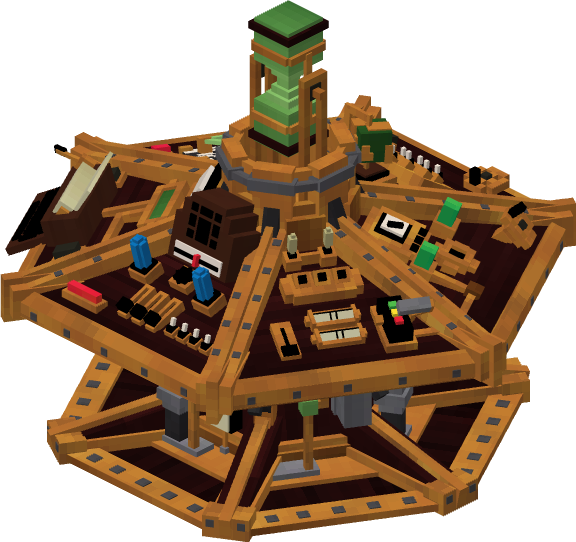
This page is a reference for the function, location and operation of the Tardis console controls for the 1.14.4 versions.controls.
To view the function and usage of any control, use the headers on the left hand panel.
To
view
Control Layout
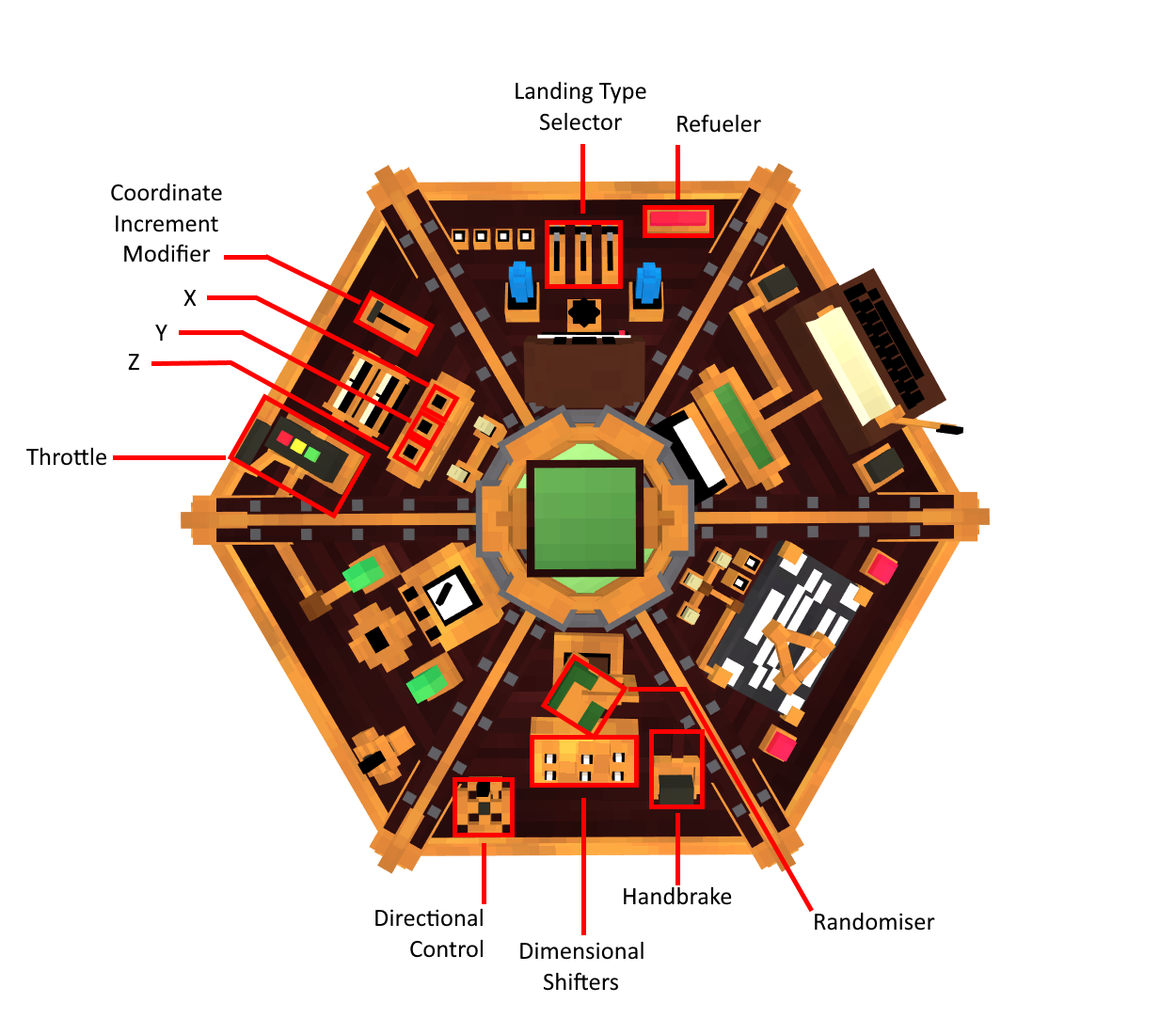
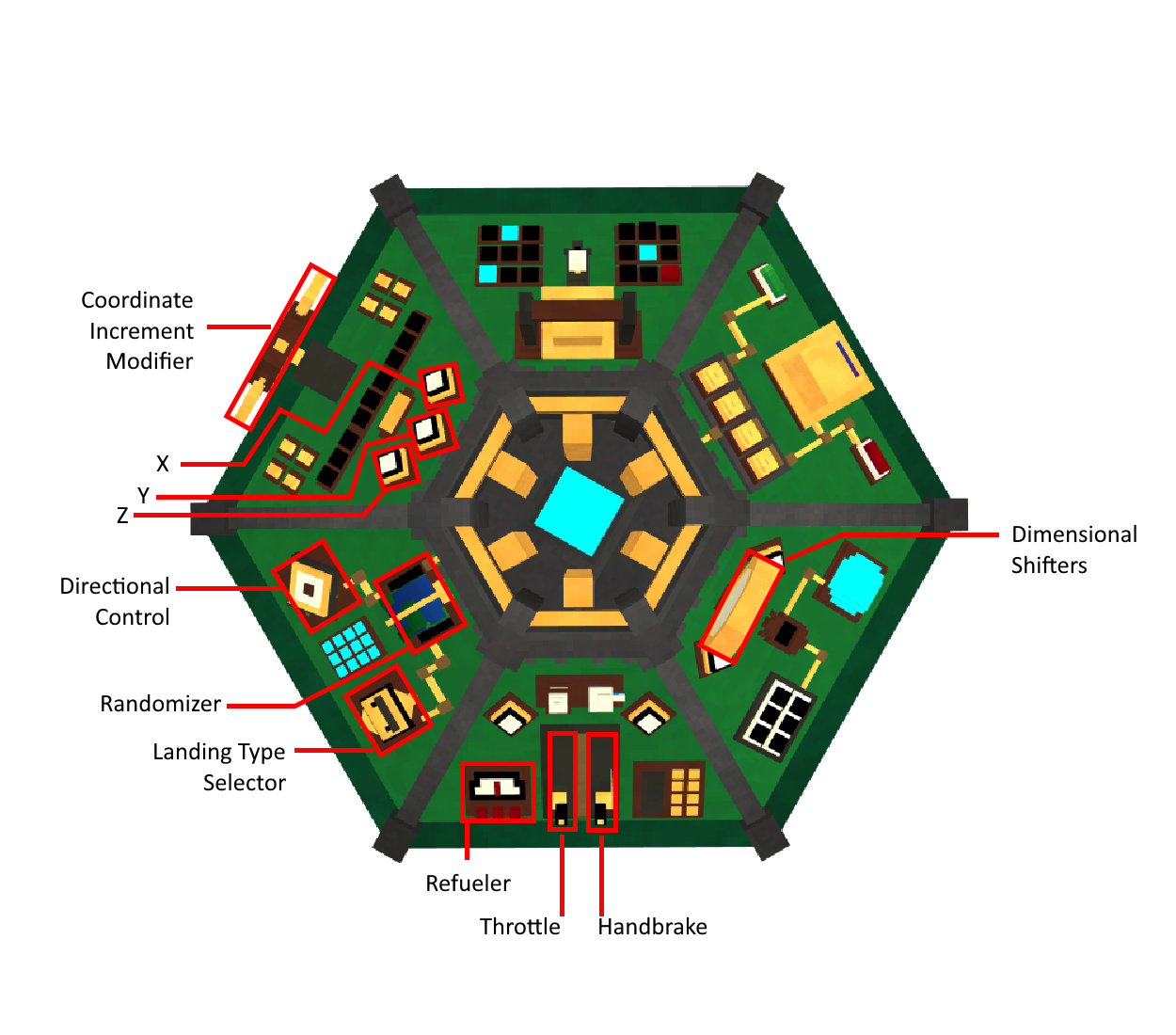
Each Console Unit has a control'sdifferent locationlayout onfor its controls. Hold the in-game Tardis Manual item in one hand, and hover over different parts of a certainConsole TardisUnit consoleto unit, see the below images.
Panel Notation
For documentation purposes, the panels on all Tardis console units can be referenced usinglearn the layout asof showneach below.console.
Console Unit Control Layouts
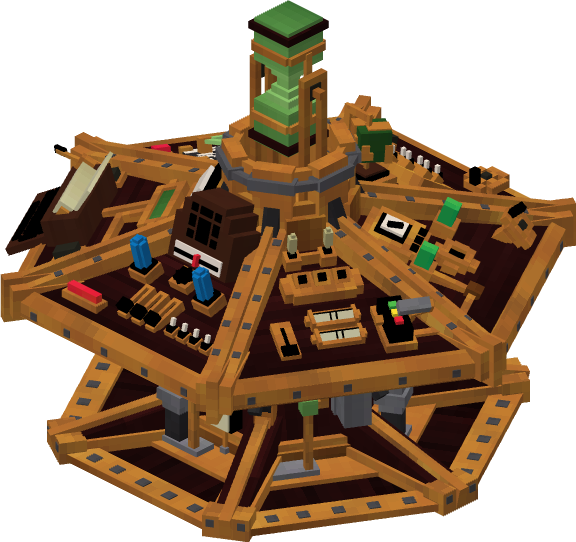
Steam (Secured Terminal Equational Astrolabe Mainframe)
Console Unit Control Layout
Nemo (Navigators Equation Mainframe Operations) Console Unit Control Layout
Controls List (A-Z)
Communicator
About
Will allow distress signals to be intercepted by the Tardis. These distress signals can be either signals sent by players or by Crashed Ship Structures.
Usage
Installing Required components
Install the Interstitial Antenna in the Components panel of the Tardis Engine
Locating Signals
Fly the Tardis to different locations
When the Tardis has landed, if it has detected a distress signal it will make a beeping or ringing sound, depending on the Console.
You can choose to accept or ignore the signal
Travelling to the Distress Signal
Right click the Communicator Control. If the Tardis has found distress signals, a GUI will open. Otherwise, there will be no GUI.
To travel to the location of the signal, press the Accept button.
Use the throttle and handbrake to take off
Ignoring the Distress Signal
Right click the Communicator Control. If the Tardis has found distress signals, a GUI will open. Otherwise, there will be no GUI.
Press the Ignore button to delete the distress signal. This will prevent it from making the control play the ringing sound.
To Ignore all signals, press the Ignore All Button in the Communicator GUI
Coordinate Increment Modifier
About
This control adjusts the increment rate of the XYZ plotters.
The rates are 1, 10, 100 and 1000.
By default the increment rate is 10.
Usage
Right click the button to cycle through the increment rates.
Coordinate Randomizer
About
This control randomizes all of your coordinates within 5,000 blocks in your current dimension.
Usage
Right click the button, adjust the flight speed with the Throttle, then toggle the Handbrake to the ON state to take off.
Dimensional Shifters
About
This control allows you to select the destination’s dimension. (E.g. The End).
This control will be able cycle though all the dimensions in a server, and dimensions from other mods.
Usage
Right click the button to cycle through all available dimensions.
When you are satisfied with your settings, adjust the flight speed with the Throttle.
Toggle the Handbrake to ON to take off.
Notes
The desired dimension must be selected
before adjusting the Throttle and Handbrake.
Door Control
About
This control allows you to open, close, unlock and lock the Tardis doors.
Usage
Right click the control to open/close the doors
Sneak and right click on the control to unlock or lock the doors
Fast Return
About
This allows your time-ship to return to the last location it landed in.
Usage
Right click the control to set the Tardis destination to the previous location it landed in.
Landing Type Selector
About
The button can be toggled to find the highest available or lowest available position at your destination.
This is useful if you are unsure of the potential risks at the destination coordinates. E.g. Large falls, lava pits etc.
Usage
Right click the button to toggle between the two type of searching patterns. This toggles whether it'll look up or down first.
When you are satisfied with the settings, adjust the flight speed with the Throttle, then toggle the Handbrake to the ON state to take off.
Handbrake
About
This lever will toggle the Tardis’s ability to remain in its current position, which used in conjunction with the Throttle.
This can prevent the Tardis from taking off on its own if the Tardis’ mood is in a negative state.
Usage
When right clicked the handbrake will be toggled between an ON state and OFF State
The ON State indicates the handbrake is engaged. The Tardis cannot dematerialise in this state.
The OFF State indicates the handbrake is disengaged. The Tardis will be able to dematerialise in this state.
Notes
The Tardis will automatically land, there is no need to pull the lever again
If the handbrake is used to stop flight, it will cause significant damage to the sub systems and may trigger a negative emotional response from the Tardis
Refueler
About
This button allows you toggle the refuelling of the Tardis. It is a necessity if you want to fly for any length of time.
The amount of fuel used for each trip will vary, therefore it is recommended that you refuel the Tardis after each flight.
Trips that cross many hundreds of blocks in the same dimension or involve travelling to another dimension will take more fuel.
Usage
Simply click on the button to toggle the refuelling state. A status message will appear near the hotbar informing you if the Tardis is fueling.
Sonic Port
About
This allows the pilot to insert their Sonic device to receive or provide information to their time-ship.
Currently itIt allows for players to unlock thedifferent Policeschematics, Boxwhich can include interiors, exteriors or consoles for theira Tardis.Tardis
Usage
Obtain
the Police Box Mk 3/ Mk 7 Exterior
LocateDownload a CrashedSchematic Ship Structure.
Right click the Ship’s Computer inside the structure withinto a Sonic Screwdriver
Enterusing youra Tardis.Neutronic Spectrometer or other means.
Right click the Sonic Port with the Sonic
ScrewdriverScrewdriver.
SeeIf the Schematic is valid, a message will be shown that the
Mkschematic's 3 or Mk 7 Police Box Exteriorobject has been unlocked.
ThereIf there is
an error, or the schematic has already been unlocked, a
50%message chancesimilar to
unlock"This oneobject ofhas themalready been unlocked" will be shown.
Stabilisers
About
This toggles the time-ship's Flight Mode between Unstabilised and Stabilised Flight
Usage
Right click the control to toggle between Unstabilised and Stabilised Flight
Throttle
About
The Thottle controls the Tardis’ flight speed through the Time Vortex which affects its Time of Flight.
It also allows the Tardis to safely exit flight mode if they are already committed to an ongoing journey.
Usage
To increase flight speed, right click the Throttle control. Each interaction in this way will decrease flight speed by 10%.
To increase flight speed to 100% quickly, left click on the Throttle control.
To decrease flight speed, Sneak and Right click the throttle control. Each interaction in this way will decrease flight speed by 10%
To decrease flight speed to 0% quickly, sneak and left click on the Throttle control.
Notes
If the user needs to stop flight during an ongoing journey, they must set the Throttle to 0 to safely ease the Tardis out of flight mode.
Using the Handbrake to stop flight will cause significant damage to the Tardis sub systems and may provoke a negative emotional response from the Tardis.
The Throttle must be set to 10% flight speed or more to allow the Tardis to start its flight. At the end of each journey, the flight speed will default to 0%.
A faster flight speed means the Tardis will be able to reach its destination in a shorter period, at a cost of consuming fuel at a faster rate.
A slower flight speed means the Tardis will take a longer period to reach its destination but will consume fuel at a lower rate.
Telepathic Circuits
About
This allows your time-ship to locate nearby biomes, structures and other objects within a 500 block radius.
It is also a direct interface between the pilot and the timeship, allowing both to read each other's emotions.
Usage
Biome/Structure Locator
Right click the control to open the GUI. Select an object to search for.
To locate nearby Structures, insert the Structure Upgrade (currently creative only) into the Upgrades panel of the Tardis Engine, then reopen the GUI
Emotion Interpreter
Sneak and Right click the Telepathic Circuits. You will receive message similar to “You feel more connected to your Tardis”
Place down a bed inside the Tardis interior
Sleep in the bed. The Tardis’ mood will be displayed as a chat message.
X, Y, and Z Plotters
About
These controls alter the Tardis' position in space by adjusting the X, Y Z coordinates.
The coordinate values can be increased or decreased. The increment rate is controlled by the Increment Modifier.
Usage
To increase the coordinate value, right click the button for the corresponding coordinate value.
To decrease the coordinate value, Sneak + right click the button.
The changes to your destination location can be viewed via the Tardis monitor.